

- Trace Jev in your application: If your application calls Jev to route support requests, assess urgency, or make other decisions, instrument those calls to inspect their inputs, answers, and probabilities in Braintrust traces.
- Use Jev for evaluations: Configure Jev as the LLM judge to check AI outputs against your criteria, such as whether a support response follows a refund policy. Braintrust runs the evaluator and turns Jev’s decisions into scores or labels in experiments or online scoring.
Tracing
Instrument TypeSafe calls in your application to capture their inputs, results, timing, and errors in Braintrust question spans.Setup
Requires Braintrust v3.34.0+ and@typesafe-ai/sdk v0.6.0 or later within v0.x. You need a TypeSafe account and API key.1
Install packages
2
Set environment variables
Set your Braintrust API key and TypeSafe API key in your shell:For the EU data plane, also set
BRAINTRUST_API_URL to https://api-eu.braintrust.dev. For a self-hosted deployment, use your data plane URL.Auto-instrumentation
Use Braintrust’s import hook to trace TypeSafe calls throughout your application.1
Initialize Braintrust and call Jev
Save this example as
trace-typesafe-auto.js. It asks Jev to route a support request, assess its urgency, and identify whether it mentions a duplicate charge.2
Run with the import hook
node --import can run the file directly. The Braintrust APIs work the same in TypeScript projects — compile your TypeScript to JavaScript, then run the compiled file with the import hook.If you’re using a bundler, see Trace LLM calls for plugin and loader setup.
typesafe.systemOne span to inspect the decisions.Manual instrumentation
Wrap individual clients withwrapTypeSafe() to choose which TypeSafe calls to trace.experimental_evaluate(), wrap the ai module with wrapAISDK() instead. This requires AI SDK v7.0.103 or later within v7. In your existing AI SDK application, replace the direct import of experimental_evaluate() with the wrapped export:experimental_evaluate() with your existing evaluation model, state, and questions. Braintrust records an evaluate span with type question. The import hook also instruments this function. For evaluation calls, use the wrapper or import hook rather than relying only on AI SDK telemetry callbacks.What Braintrust traces
For eachTypeSafeClient.systemOne() call, Braintrust records a typesafe.systemOne span with type question:- Input state and questions, including question identifiers, instructions, and criteria
- Structured answers, including choices, scores, Noul values, and returned confidence and probabilities
- Model and provider metadata
- Token usage reported by TypeSafe and request duration
- Errors raised by the call
Inspect Jev decisions
Select a question span in a trace and use the Pretty view for its input and output. The input shows the state sent to Jev and each question’s instructions and criteria. The output matches answers to questions by identifier, taken from the keys in your request, so you can inspect the decision alongside the question that produced it.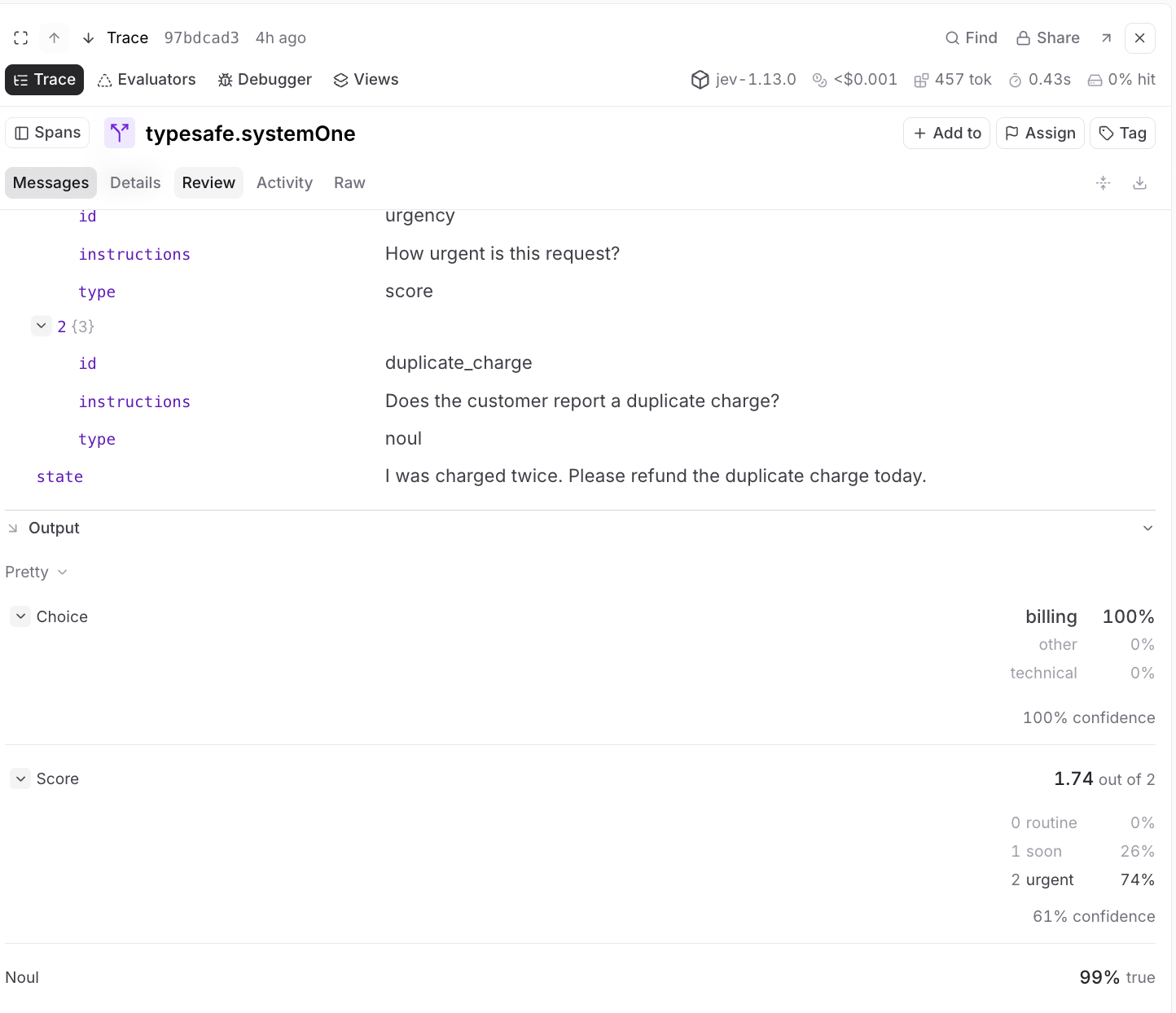
- Noul: Probability of yes, displayed as a percentage on a scale from no to yes.
- Choice: The selected option, per-option probabilities, and confidence when returned.
- Score: The numeric result on the rubric’s scale, level descriptions, per-level probabilities, and confidence when returned.
0 and 1, summarizes how concentrated that distribution is. It is separate from the selected option’s probability and from an evaluation score. High confidence does not guarantee a correct decision.
LLM-as-a-judge
Use Jev as the model in an LLM-as-a-judge evaluator. It reads AI output, plus any context you pass it, and returns one of the choices you define rather than text. Braintrust turns that choice into either a numeric score, such aspass → 1 and fail → 0, or a classifying label, such as billing or technical.
Jev works best for frequent, focused checks with a clear answer, such as whether a support reply follows your refund policy. For broad or nuanced criteria like tone or helpfulness, where the useful output is a judgment rather than a selection, a general-purpose LLM is the better judge. See Choose a judge model.
Configure access
Braintrust runs the evaluator, so you give it access to Jev in your settings rather than in your application. There are two ways:-
Braintrust’s built-in Jev, which needs no TypeSafe account of your own. Braintrust’s built-in Jev is free to use for scorers and classifiers. It is not available through the AI gateway. Go to Settings > AI providers, click Enable Jev, and agree to send data submitted to Jev to TypeSafe for processing.
This requires built-in models to be allowed for your organization, and only members of the Owners permission group, or a custom permission group with the Manage settings organization permission, can change the setting. Disabling Jev can take up to a minute to take effect.
- A key from your own TypeSafe account, if you already have one. Add TypeSafe as an AI provider at organization or project scope.
Create an evaluator
1
Create the evaluator
Go to Scorers and click Scorer. Enter a name and slug, select LLM judge, and choose Jev under the provider you configured above. Jev appears in the model picker for scorers and classifiers, not in the picker for generating outputs in prompts or playgrounds.Selecting Jev hides the model parameter and tool controls, because it takes no sampling parameters and selects from your choices without a tool schema.
2
Write the prompt
Write a prompt that includes the context needed to make the decision and explains what each choice means. Jev judges text, so media and tool message content are rejected. To judge a trace that contains tool calls, pass the relevant context as text.For example:The prompt defines the criteria. The output configuration in the next step defines what Jev’s decision becomes.
3
Configure the output
Both output types require at least one non-empty choice. Jev returns its decision directly rather than reasoning first, so the Use chain of thought (CoT) setting doesn’t appear.
- Scorer
- Classifier
Set Output type to Score. Under Choice scores, add each choice and the number it maps to, such as
pass with score 1 and fail with score 0. Choices and scores must be unique.If your criteria do not apply to every input, enable Allow skip and explain when to skip in the prompt. Jev gains a reserved Skip choice, and selecting it returns a null score so the case is excluded from score aggregates rather than counted as 0.4
Test known cases
In the Run section, enter test values for
input and output in the editor, then click Test.For the scorer above, set input to I bought this item 10 days ago and have not used it. Can I get a refund? and output to Yes, your unused item is eligible for a refund within 30 days. The intended result is pass, with score 1.Repeat with input set to I bought this item 45 days ago and have used it. Can I get a refund? and the same output. The intended result is fail, with score 0. Compare Jev’s actual decisions with these judgments and refine the prompt if they disagree.5
Save the evaluator
Click Save as custom scorer. Select the saved evaluator when you run an experiment or score production traces to apply the same criteria to new outputs.
Interpret the result
Jev returns one of the choices you define, which Braintrust maps to a number for a scorer or keeps as a label for a classifier. The mapping ignores confidence, so apass choice scored 1 returns 1 even when Jev is unsure. Both scorers and classifiers carry the same metadata:
Use confidence and probabilities to investigate uncertain judgments. Compare confidence with correctness on human-reviewed examples before choosing a threshold for further review. Routing uncertain results to a person or another judge requires your own logic.
An evaluator’s model call appears as a
TypeSafe Jev LLM span.
Resources
Tracing- TypeSafe quickstart
- TypeSafe client SDKs
- Customize traces beyond what the integration records
- Run experiments with your saved evaluator
- Configure online scoring to evaluate production traces
- Develop LLM-as-a-judge evaluators for span, trace, or group scoring